A complete guide to SHRINK in SQL Server
Categories:
8 minute read
A shrink is a manual, one-off operation, never automated and never scheduled.
Always use DBCC SHRINKFILE on a specific file, never DBCC SHRINKDATABASE.
On large files, shrink in small increments rather than in one go.
The operation never corrupts the database: SQL Server is dependable here.
When should you shrink?
Shrinking is discouraged as a general rule. It is an expensive operation that fragments indexes heavily. Paul Randal, who wrote the SHRINK command in SQL Server 2005, explains it in detail: Why you should not shrink your data files.
But: if you are asked to reclaim disk space, do it. That is a legitimate request. The typical case: a database that grew after a bulk import or a one-off operation, and the data was then purged. You are left with a 200 GB file of which only 20 GB is used. You are asked to free the space, so you shrink.
Check the space in use
Before reducing anything, find out where the space actually stands.
The SSMS report
In SQL Server Management Studio: right-click the database > Reports > Standard Reports > Disk Usage. The report shows pie charts of the split between used and free space in the data and log files.
Querying the data files
This query reads sys.database_files to show the total size, the space used and the free space of every file in the current database:
SELECT
    name AS [logical_name],
    file_id,
    CASE type_desc
        WHEN 'ROWS' THEN 'DATA'
        WHEN 'LOG' THEN 'LOG'
        ELSE type_desc
    END AS [type],
    size / 128 AS [size_MB],
    FILEPROPERTY(name, 'SpaceUsed') / 128 AS [used_MB],
    (size - FILEPROPERTY(name, 'SpaceUsed')) / 128 AS [free_MB],
    physical_name AS [physical_path]
FROM sys.database_files
ORDER BY type_desc, file_id;
Transaction log space
For log files, use DBCC SQLPERF:
DBCC SQLPERF(LOGSPACE);
This returns the log size and the percentage used for every database on the instance.
SHRINKFILE, not SHRINKDATABASE
DBCC SHRINKDATABASE. It reduces every file of the database indiscriminately. You get no control over which file is targeted, nor over the final size of each one. Always use DBCC SHRINKFILE on a specific file.Find the logical file name
DBCC SHRINKFILE expects the logical file name as its first parameter. To find it, in the current database:
SELECT
    file_id,
    CASE type_desc
        WHEN 'ROWS' THEN 'DATA'
        WHEN 'LOG' THEN 'LOG'
        ELSE type_desc
    END AS [type],
    name AS [logical_name],
    physical_name AS [physical_name]
FROM sys.database_files;
DBCC SHRINKFILE syntax
USE [MyDatabase];
GO
DBCC SHRINKFILE (N'logical_file_name', 50000);
GO
The first parameter is the logical file name. The second is the target size in MB — here 50000 MB, roughly 50 GB.
Using SSMS to generate the script
You can also go through the SSMS interface to generate the command, which is convenient when starting out:
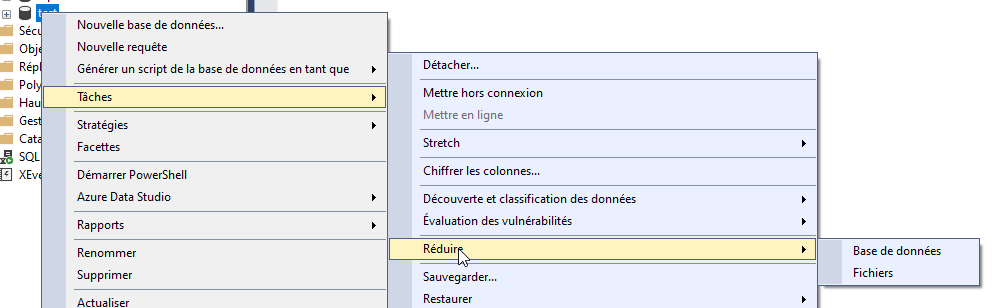
Right-click the database > Tasks > Shrink > Files
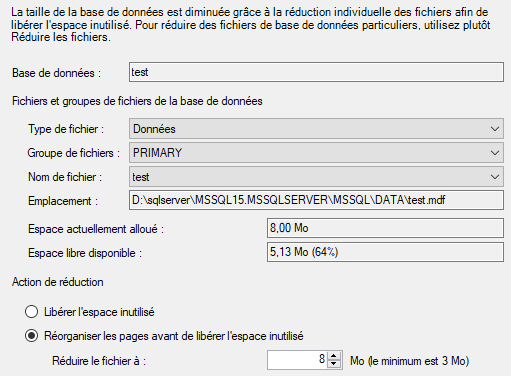
Select the file and set the target size
Click Script to generate the T-SQL command in a new window
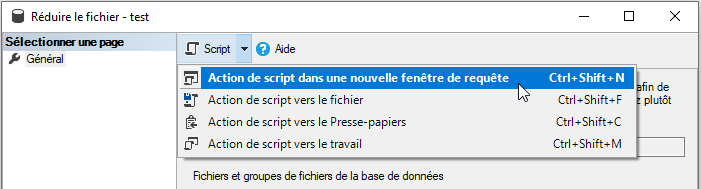
The advantage of the script: you see the command, you can change it, watch the execution in the results pane, and re-run it easily if needed.
How SHRINK works internally
SQL Server takes the data pages sitting at the end of the file and moves them toward the beginning, into the free space. This is a physical movement of pages on disk. That is why the operation is slow and why it fragments indexes: pages that were contiguous and well ordered end up scattered.
The operation is non-blocking: it takes no long-lived exclusive locks on the tables. Users can keep working while it runs. You can start it over a weekend, and if it spills into working hours it is not a disaster.
An incremental shrink strategy
Reducing a large data file in one go can take hours, or days. The more data there is to move, the longer it takes.
The answer: shrink in steps. Rather than going straight from 200 GB to 50 GB, go from 200 to 180, then 160, then 140, and so on down to the target size. Depending on your disk performance and hardware you can even work in small increments, 25 MB for instance. Each step finishes faster, and you keep better control over the progress.
If you lose the connection during a shrink, the operation stops cleanly. The database is not damaged. You simply restart from the last step reached. That is a further advantage of the incremental approach: every completed step is permanent.
Incremental T-SQL script
This script reduces a file in 10 GB increments:
USE [MyDatabase];
GO

DECLARE @file_name sysname = N'MyDatabase';    -- logical file name
DECLARE @target_size_MB int = 51200;            -- 50 GB in MB
DECLARE @increment_MB int = 10240;              -- 10 GB in MB

DECLARE @current_size_MB int;
DECLARE @new_size_MB int;

-- get the current size
SELECT @current_size_MB = size / 128
FROM sys.database_files
WHERE name = @file_name;

PRINT 'Current size: ' + CAST(@current_size_MB AS varchar(20)) + ' MB';
PRINT 'Target size: ' + CAST(@target_size_MB AS varchar(20)) + ' MB';

SET @new_size_MB = @current_size_MB - @increment_MB;

WHILE @new_size_MB >= @target_size_MB
BEGIN
    PRINT '--- Shrinking to ' + CAST(@new_size_MB AS varchar(20)) + ' MB ---';
    DBCC SHRINKFILE (@file_name, @new_size_MB);
    SET @new_size_MB = @new_size_MB - @increment_MB;
END

-- final step, exactly to the target size
IF @new_size_MB + @increment_MB > @target_size_MB
BEGIN
    PRINT '--- Final shrink to ' + CAST(@target_size_MB AS varchar(20)) + ' MB ---';
    DBCC SHRINKFILE (@file_name, @target_size_MB);
END

PRINT 'Done.';
GO
Adjust the three variables at the top of the script: the logical file name, the target size and the increment.
Automating with dbatools
The dbatools PowerShell module provides Invoke-DbaDbShrink, which handles incremental shrinking natively through the -StepSize parameter.
# incremental shrink of the data file, in 10 GB steps
Invoke-DbaDbShrink -SqlInstance "MyServer" `
    -Database "MyDatabase" `
    -FileType Data `
    -StepSize 10GB `
    -ShrinkMethod Default `
    -PercentFreeSpace 20
Useful parameters:
| Parameter | Description |
|---|---|
-FileType | Data or Log — the type of file to shrink |
-StepSize | The size of each increment, e.g. 10GB. The MB, GB, TB suffixes supported by PowerShell all work |
-ShrinkMethod | Default, TruncateOnly, NoTruncate |
-PercentFreeSpace | The percentage of free space to keep after the shrink |
Monitoring the operation
A shrink can run for a long time. While it runs, open another SSMS window and use this query:
SELECT
    session_id,
    start_time,
    status,
    DB_NAME(database_id) AS [db],
    blocking_session_id,
    wait_time,
    wait_type,
    wait_resource,
    percent_complete,
    total_elapsed_time
FROM sys.dm_exec_requests WITH (READUNCOMMITTED)
WHERE command IN (N'DbccFilesCompact', N'DbccSpaceReclaim')
OPTION (RECOMPILE, MAXDOP 1);
The percent_complete column gives you an estimate of the progress.
percent_complete column.Understanding the status
The command can be RUNNING or SUSPENDED. Most of the time it will be SUSPENDED: it is waiting on the I/O subsystem to carry on with its work.
The wait_type column tells you what it is waiting for. The wait_time column gives the duration of the current wait, in milliseconds.
The classic case:
PAGEIOLATCH_EX— the shrink is waiting for data pages to be read from disk. If the disk is slow or saturated, you will see substantial waits of this type.
Sizing the target
Do not shrink all the way down. Leave headroom for growth, so you avoid frequent auto-growth events.
Data files
The target size depends on two things: the current size of the data, and the growth rate.
A concrete example: your database holds 20 GB of data. Shrink the file to 21 GB and it will have to grow again almost immediately. Aim for 50 GB instead, 2.5× headroom. That is a good average for most databases.
To estimate the growth rate, query the backup history:
SELECT
    database_name,
    CAST(backup_start_date AS date) AS [date],
    CAST(backup_size / 1024.0 / 1024.0 / 1024.0 AS decimal(10, 2)) AS [size_GB]
FROM msdb.dbo.backupset
WHERE type = 'D'
    AND database_name = 'MyDatabase'
ORDER BY backup_start_date DESC;
This shows how the size of the full backups has evolved over time. If the database went from 18 GB to 20 GB in six months, the growth rate is moderate and 50 GB of headroom is comfortable.
The transaction log file
Log size depends on the recovery model and on the frequency of the log backups.
- In SIMPLE: the log recycles itself automatically at checkpoints. It does not need to be large.
- In FULL, in production: the log only recycles after a log backup. Its size depends on the volume of modifications between two backups.
To find the log backup frequency, check the Last Log Backup value in the database properties in SSMS. If the log backup runs every 15 minutes, the log does not need to be huge: 15 minutes rarely produces a considerable volume of modifications.
For more on transaction logs, see Transaction log problems.
After shrinking a data file: rebuild the indexes
To rebuild every index on a table:
ALTER INDEX ALL ON [schema].[table] REBUILD;
WITH (ONLINE = ON) on the Enterprise edition.
On large tables, prefer a REORGANIZE, which is non-blocking, or use Ola Hallengren’s maintenance scripts to rebuild online.To rebuild every index of every table in the database, you can use a cursor, go through dbatools, or use Ola Hallengren’s maintenance scripts, which are the reference for index maintenance in SQL Server.